Live weight
Read your scale’s weight in grams on the brewing screen.
Turn on the scale. Tap FIND and allow Bluetooth access.
 Beanzen
What each feature does and how to use it.
Read your scale’s weight in grams on the brewing screen.
Turn on the scale. Tap FIND and allow Bluetooth access.
Follow the flow rate in g/s and on a chart. Beanzen calculates it from changes in weight.
Start a brew to record the flow.
Save your coffee dose and zero the scale before brewing.
Tap DOSE to weigh the coffee. Tap the dose in the header to enter it manually.
TARE works only on scales that support the command.
See the ratio between the coffee dose and measured weight. The final ratio stays with the brew.
Set a dose before brewing.
For filter coffee, the measured weight depends on where you place the brewer.
Time your brew and save its duration.
START starts the timer. PAUSE pauses it. GO ON resumes it. FINISH ends the brew.
GaggiMate starts and ends its own shots.
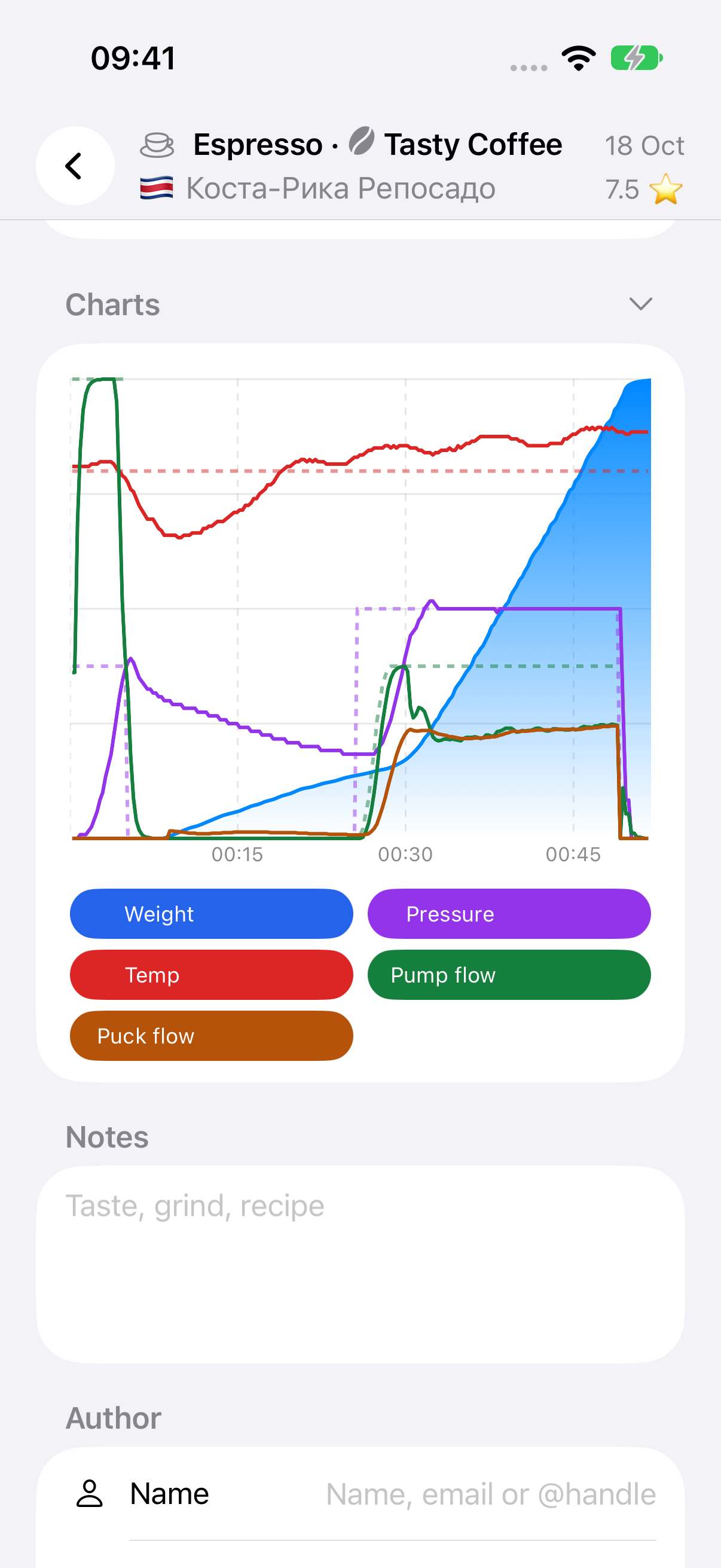
Watch weight and flow charts while brewing. Revisit them in saved records.
Drag across a chart to inspect values and time.
GaggiMate records also include supported machine channels.
Brewing controls sit at the bottom of the screen, within reach of your thumb.
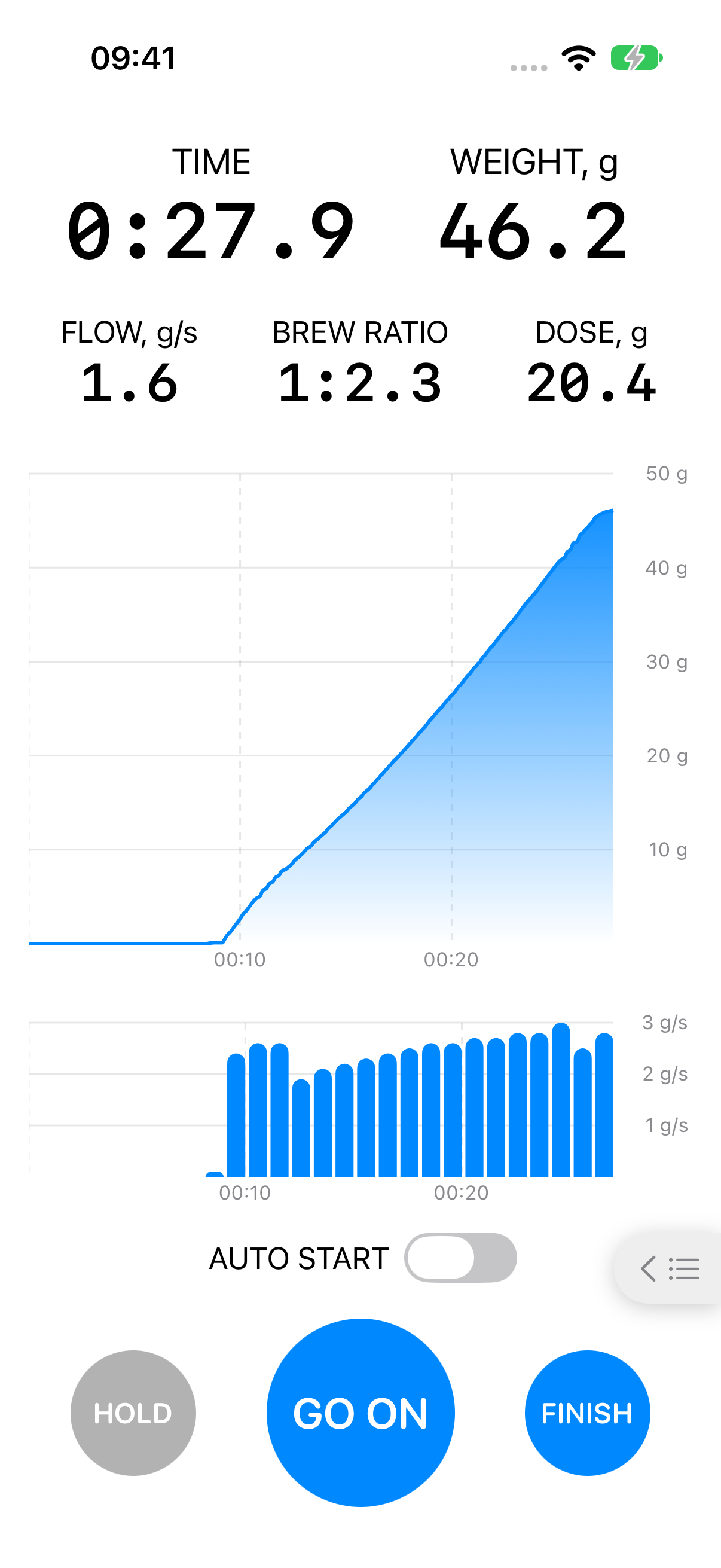
Start the timer automatically when pouring begins.
Enable AUTO START. Follow the preparation prompt on the screen.
Setup depends on the scale. Its own automatic timer mode may behave differently.
Pause the brew when you remove the cup. Charts end at the removal point.
Lift the cup after brewing.
Detection requires at least 20 g and negative weight for five seconds. It is disabled during HOLD. It does not stop the machine.
Freeze the weight in the app before moving the cup or adding a lid. The held value is used in the ratio, charts and saved record.
Tap HOLD while brewing. Tap LIVE to return to current readings.
HOLD is unavailable after cup removal and in GaggiMate mode. It does not freeze the scale’s display.
Control the scale timer from the app. On some models, scale buttons also control the app timer.
Check the functions listed for your scale.
Start, pause, reset and resume depend on the model. Varia sends button events but accepts no timer commands.
Keep charts, dose, weight and time with coffee and equipment details.
Fill in the details after brewing. Open a saved brew to edit them later.
Very short or empty sessions may not be saved.
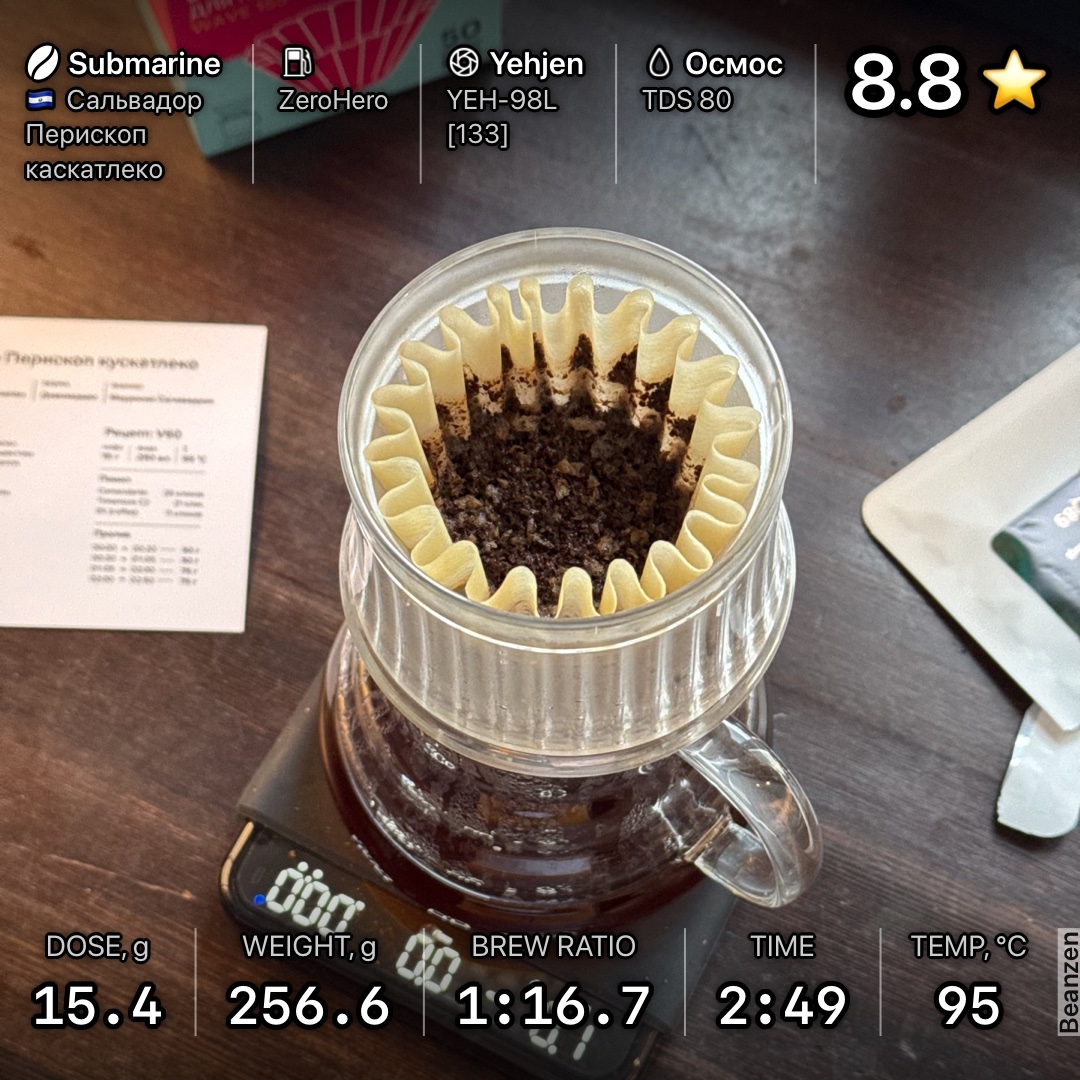
Make a picture from your brew photo. Choose which coffee, equipment, water, tasting and brew details appear.
Open the brew and tap Share image. Choose the sections. Tap Share to save or send the result.
Add a cover photo to the brew before creating the image.
Find records with search and the All, Brews, Coffee and Gear filters.
Swipe from the brewing screen to History. Choose a filter or open search.
Add tasting notes and a personal brew rating. Record cupping scores in SCA Q, SCA CVA or RRAF.
Open the tasting section of a brew or the score list of a coffee.
Each scoring system has its own scale. Coffee scores are separate from individual brew ratings.
Add up to 10 photos to a brew, coffee, grinder, brewer or water record.
Take or choose a photo. Crop it and pick a cover for the record.
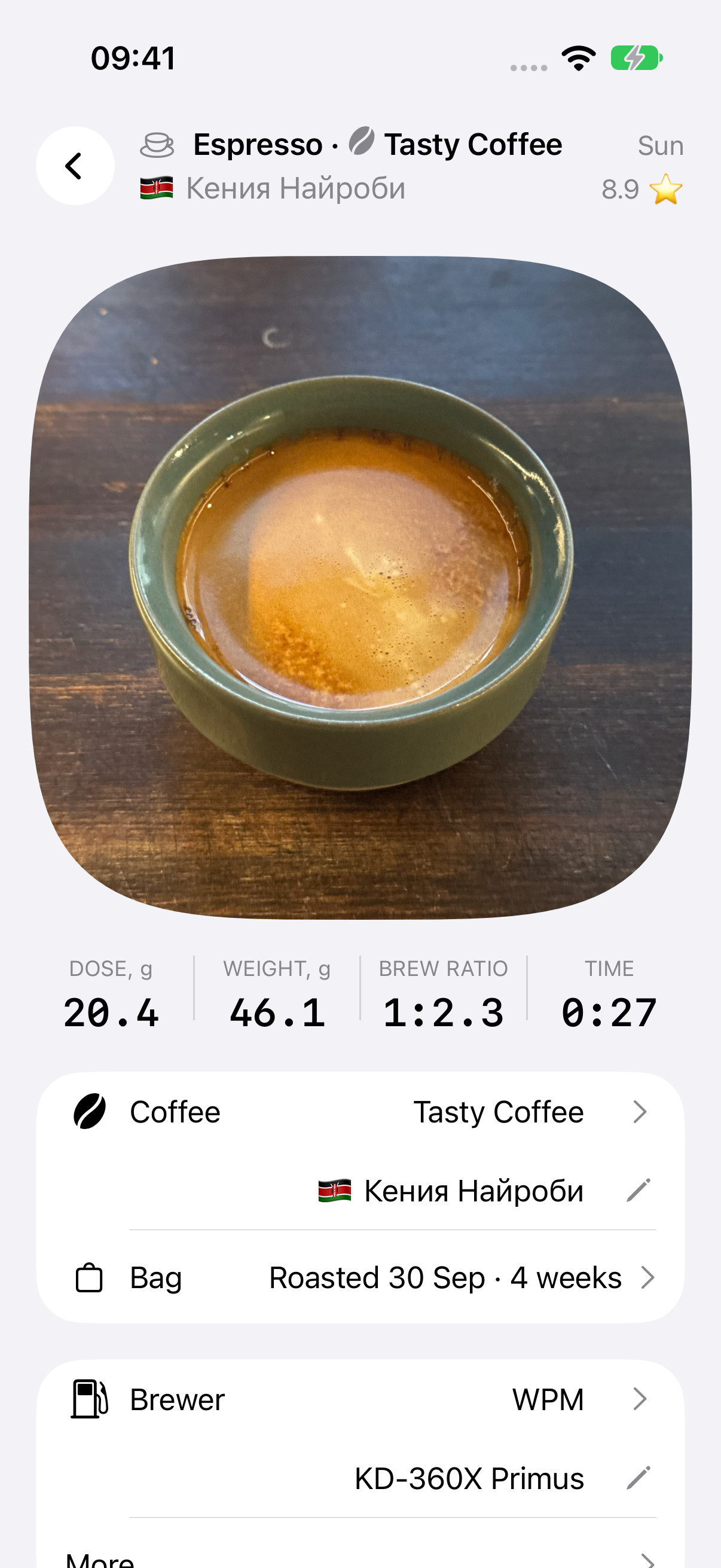
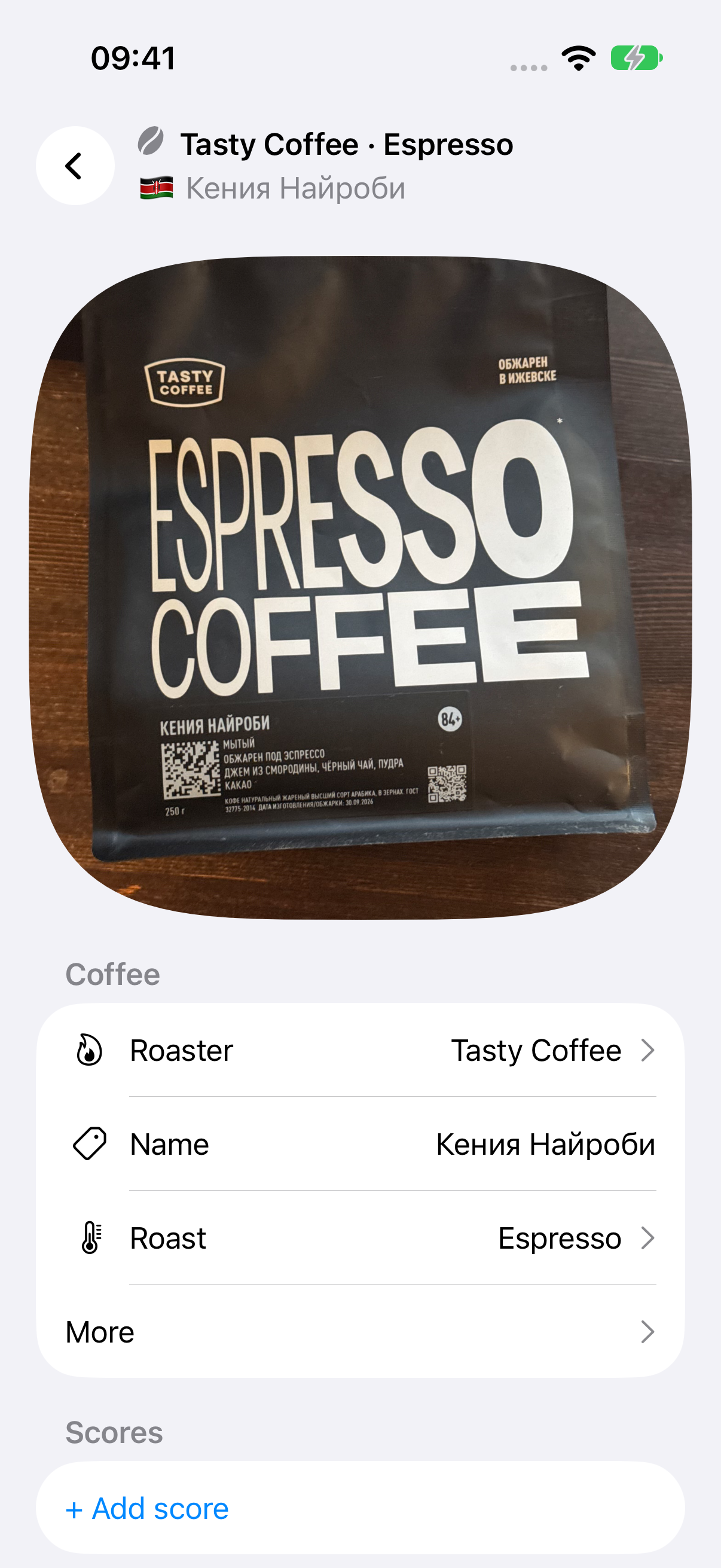
Record the roaster, origin and processing of your coffee. Keep bag details separately.
Add a coffee in History. Select the coffee and bag for each brew.
Record your grinder, burrs and grind settings.
Add a grinder in Gear. Select it when editing a brew.
Grind settings from different grinders are not directly comparable.
Save your brewing device and its parts.
Add a brewer in Gear. Select it for a brew.
Configure a GaggiMate connection in the brewer’s parts.
Record water composition, hardness, alkalinity and TDS. Beanzen calculates GH, KH and ionic TDS from the composition.
Add water in Gear. Enter its components. Review Calculated before choosing Use calculated.
Ionic TDS can differ from a meter reading. Check the calculation notes if the composition is incomplete.
Calculate extraction yield from beverage TDS, beverage weight and coffee dose.
Enter those values in the brew details.
Measure TDS with a refractometer. The phone and scale do not measure it.
Record weight, pressure, temperature and flow from a GaggiMate machine. Compare measurements with targets on the charts.
Add a GaggiMate part to the brewer. Enter its local address. Enable Use for brewing.
The machine controls the shot. Available channels depend on firmware. Use a trusted network for HTTP and WebSocket connections.
Import coffee, bags, equipment, water, brews, supported charts and photos.
Open History → + → Import from Beanconqueror. Select the export folder or ZIP.
Review the preview. Repeated imports can add records. Override replaces matching records.
Your journal stays on your device. Beanzen has no accounts, cloud sync, analytics, ads or subscriptions.
Optional Xiaomi connections and device backups are described in the privacy policy.